
If your school uses EEi and your teacher gave you both a School Code and a Student ID, this walkthrough has seven screens — from opening the EEi sign-in to claiming the slot your teacher prepared for you.
Before you start
Have these ready:
- The School Code from your teacher
- Your EEi Student ID (your teacher assigned this when they set up the class roster)
- The Student Activation Code from the back inside cover of your EE Student Book
- A working email address
Step-by-step
1. Open the EEi sign-in page.

2. Choose Create an Account.

3. Enter your School Code.
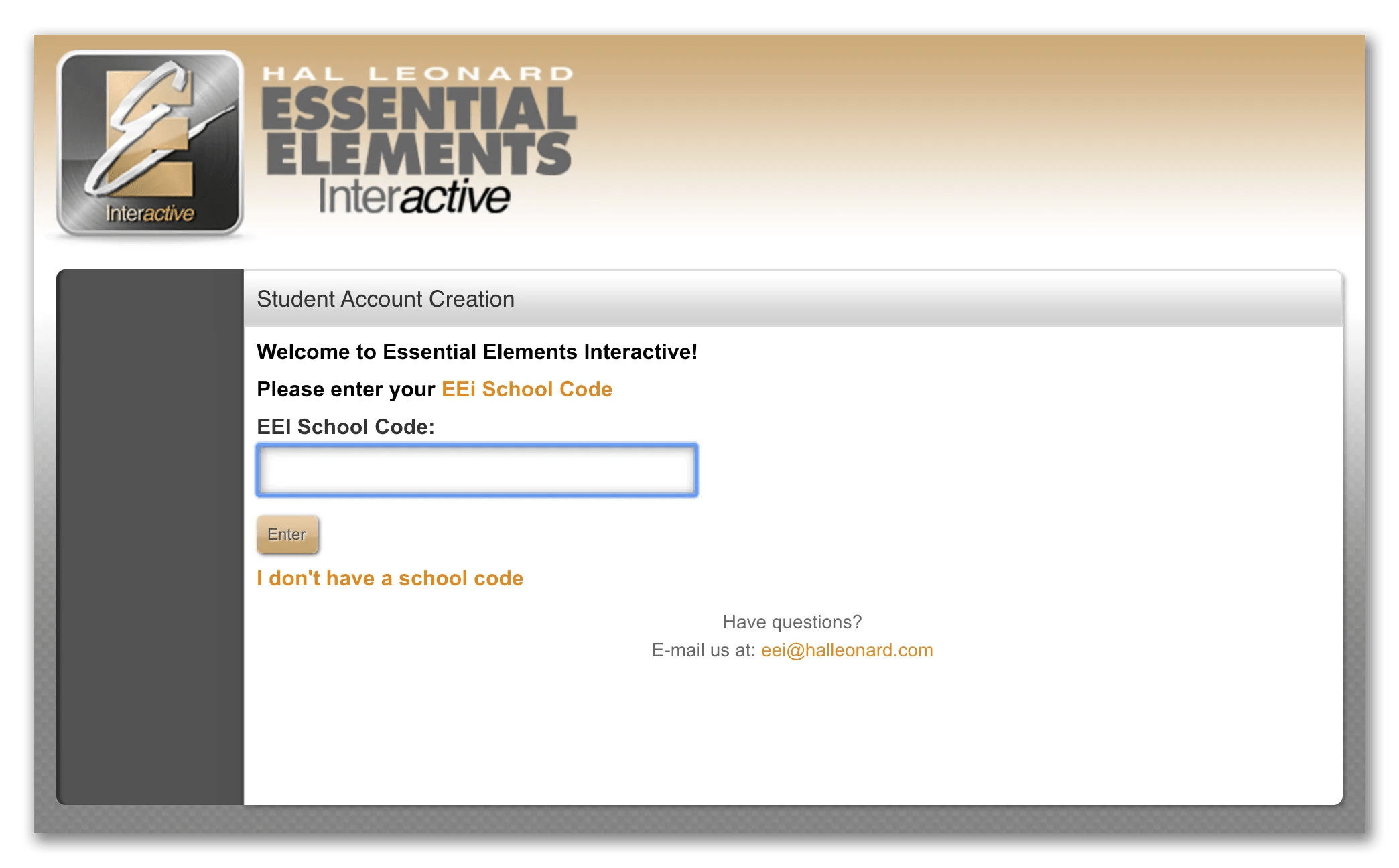
4. Enter your Student ID. The Student ID links your account to the slot your teacher already created in their class roster.

5. Accept the Terms of Agreement.

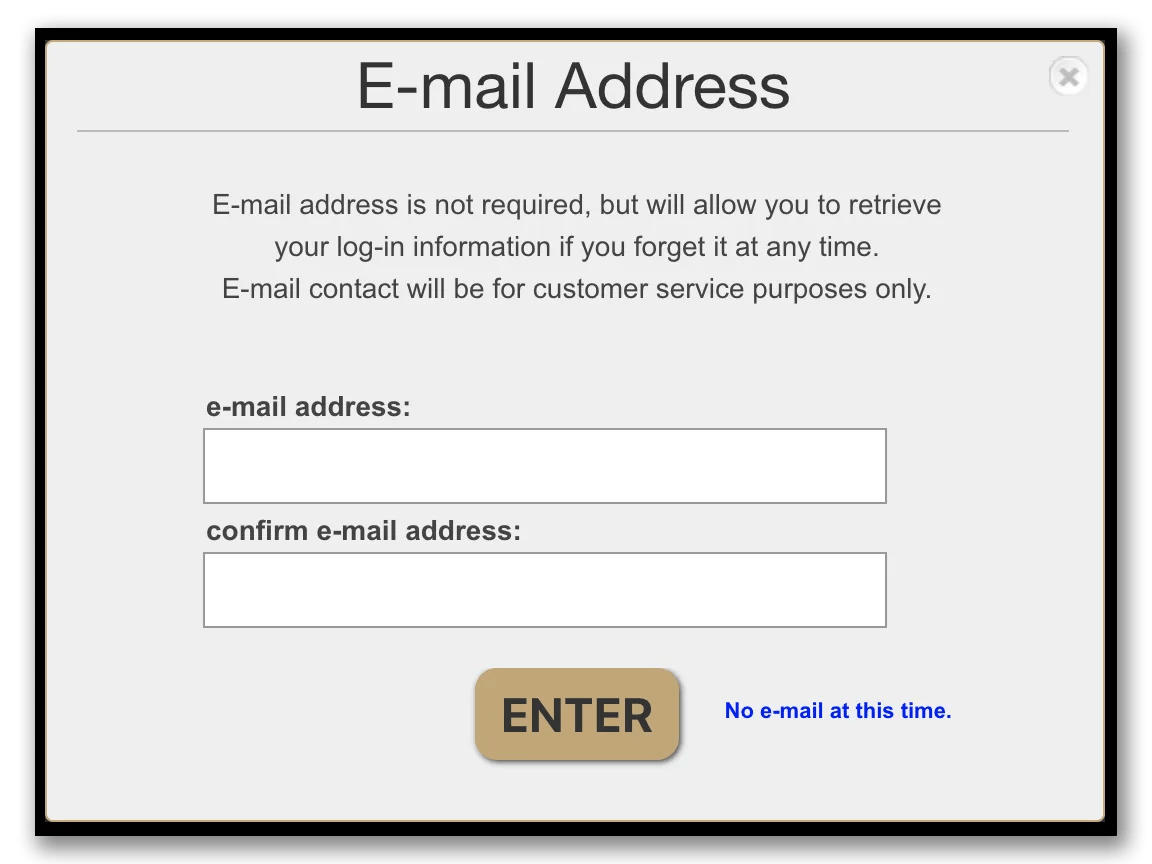
6. Fill in your account information — name, username, password, and the Student Activation Code from your EE Student Book.

7. Verify your email. Click the link in the verification email to finish.
After you sign up
Your account is now linked to your teacher’s roster. Sign in to see assignments, complete recordings for SoundCheck Performance Assessment, watch instructional videos, and track your practice across the year.
Leave a Reply