
If you’re learning on your own — without a teacher or a school that uses EEi — you can still create a Student account using the activation code in the back of your Essential Elements Student Book. This walkthrough has six short steps.
Before you start
Have these ready:
- The Student Activation Code from the back inside cover of your EE Student Book
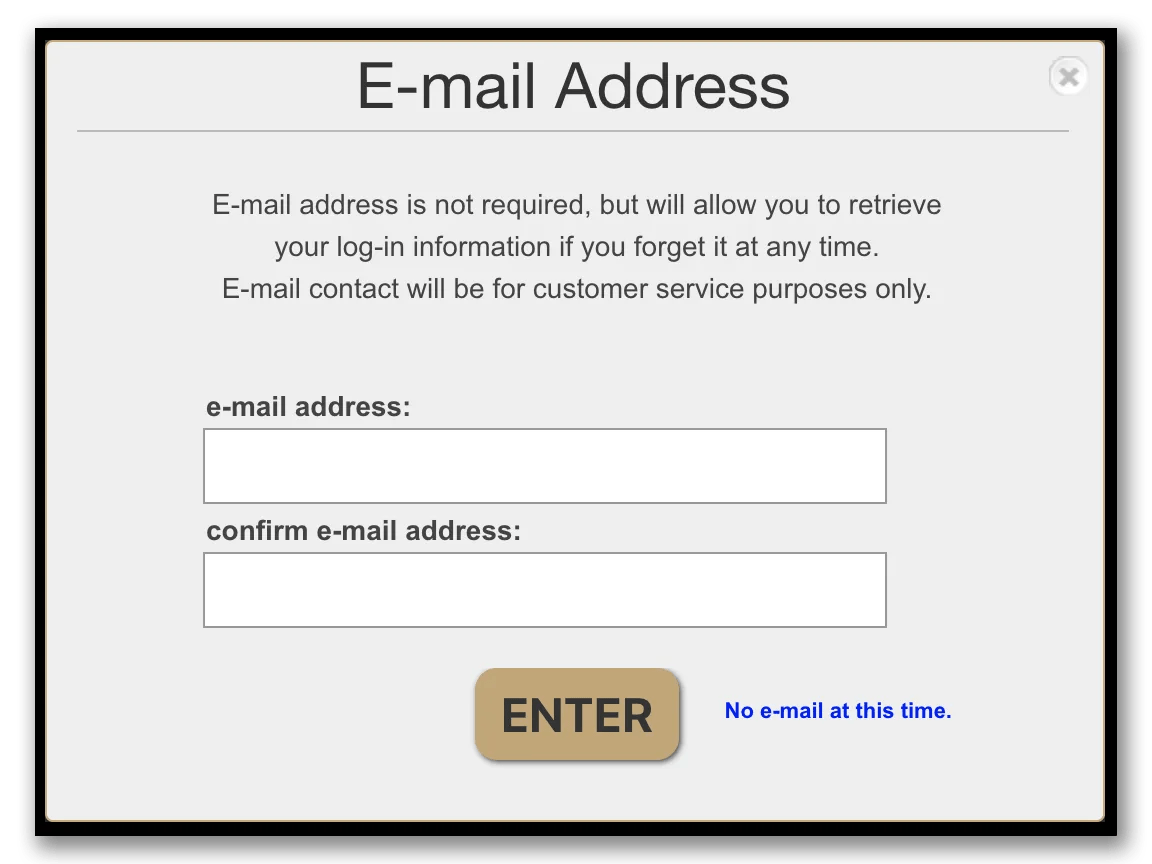
- A working email address (for the verification email and password resets)
- If you are under 13, ask a parent or guardian to sit with you — you’ll need their email at the parent-consent step
Step-by-step
1. Open the EEi sign-in page and choose Create an Account.

2. Leave the School Code blank. Since you’re not joining a school’s class, skip this field and continue.
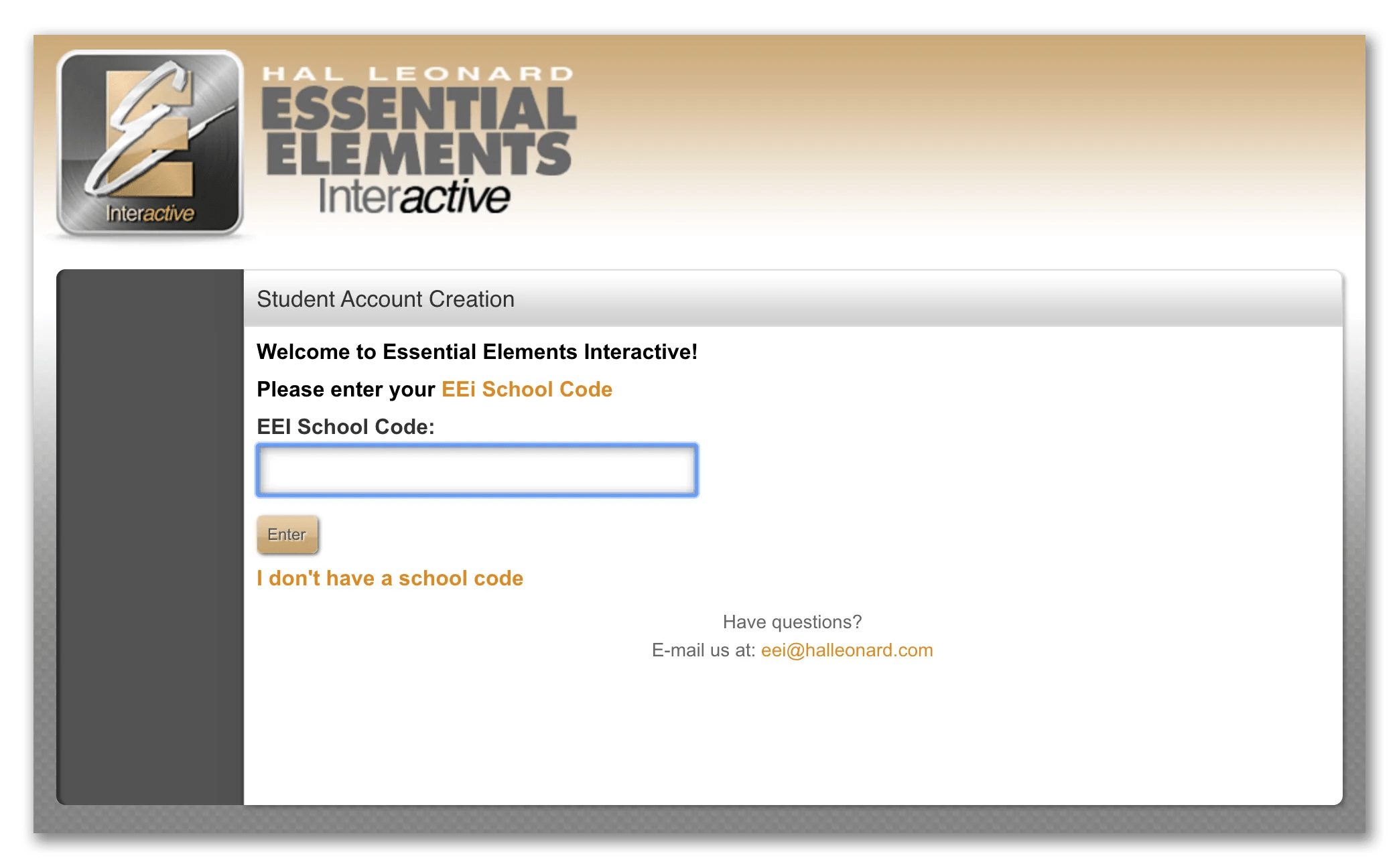
3. Confirm your age. If you’re 13 or older you can finish on your own. If you’re younger, a parent or guardian will need to give consent on the next screen.

4. Read and accept the Terms of Agreement.

5. Fill in your account information. Your name, username, password, and the Student Activation Code from your EE Student Book.

6. Verify your email. Open the verification email and click the link to confirm your address. Not seeing it? Check spam.
After you sign up
Sign in to EEi from any browser or device, open your EE Student Book next to your computer, and start exploring. You get instructional videos, play-along tracks, the SoundCheck Performance Assessment, and bonus songs that match your book lessons.
Leave a Reply